On this page, you will learn more about the Notes feature in Incision Assist.
If you need to jot something down before, during, or after a procedure, the Notes feature is your go-to. Simply click on My Notes in the bottom bar of the page.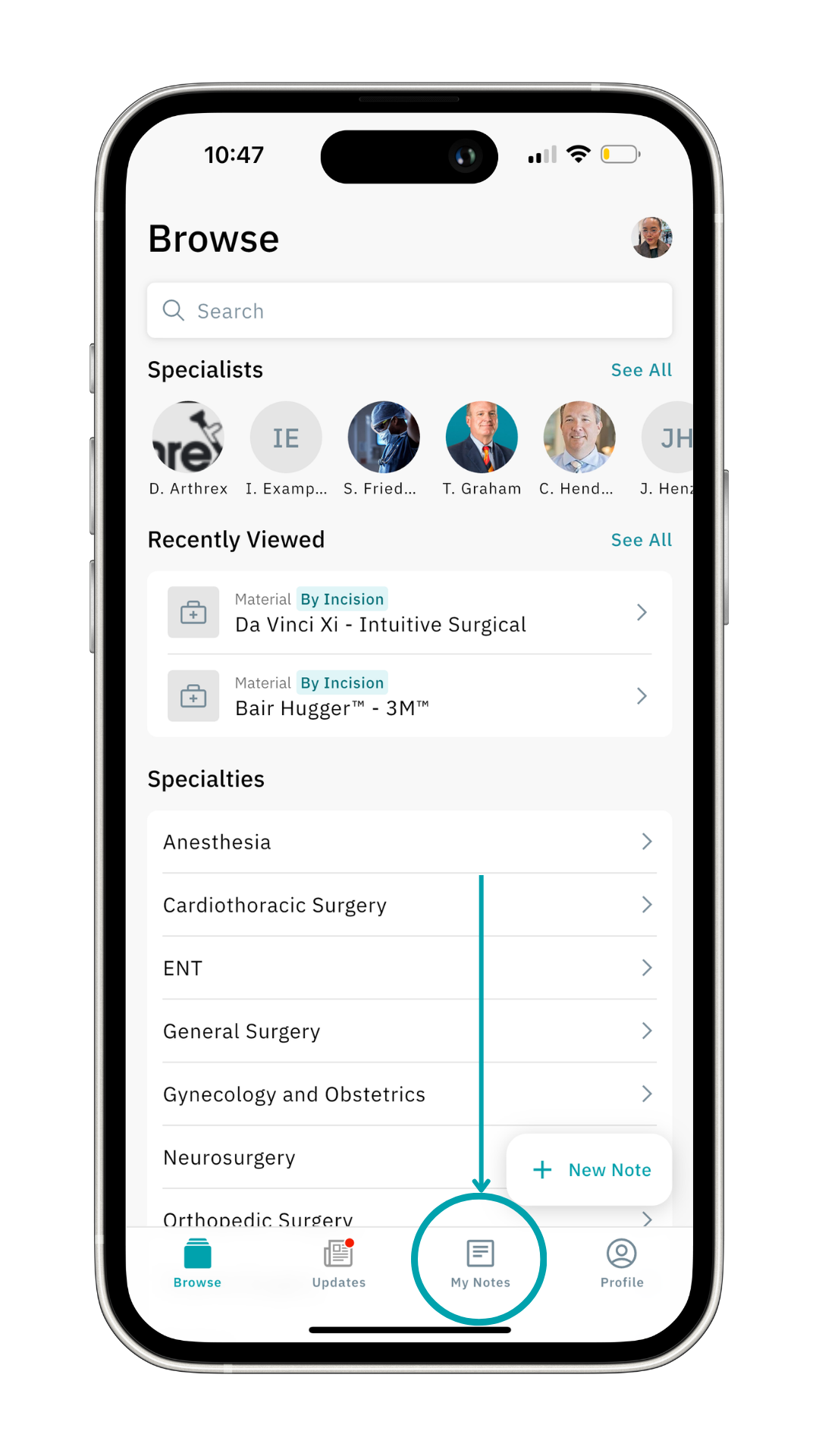
1. Create a New Note
Begin a new note by clicking + New Note at the bottom right of the page.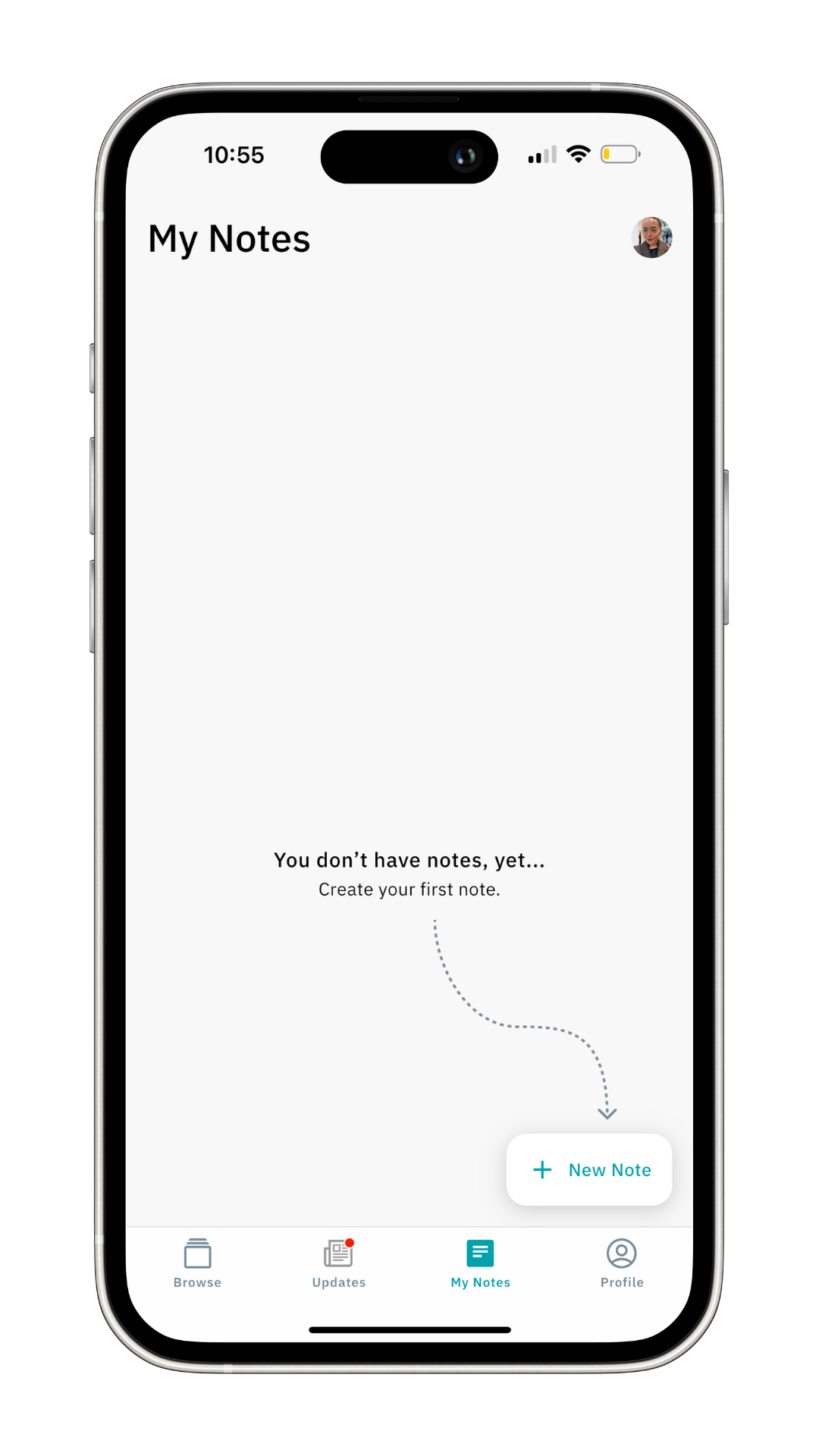
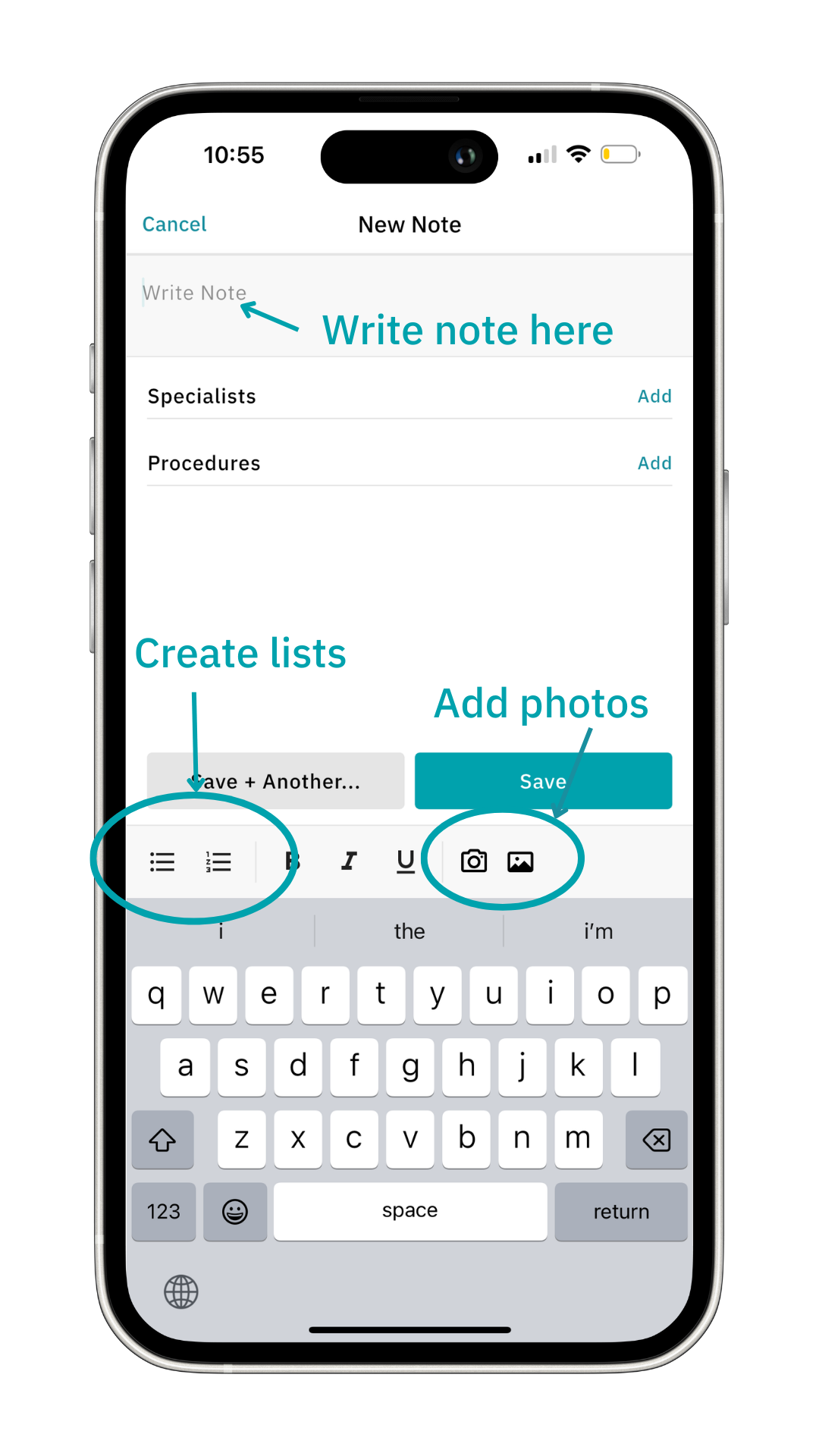
Type your note. Using the tools above the keyboard, you can create bulleted and numbered lists and include pictures.
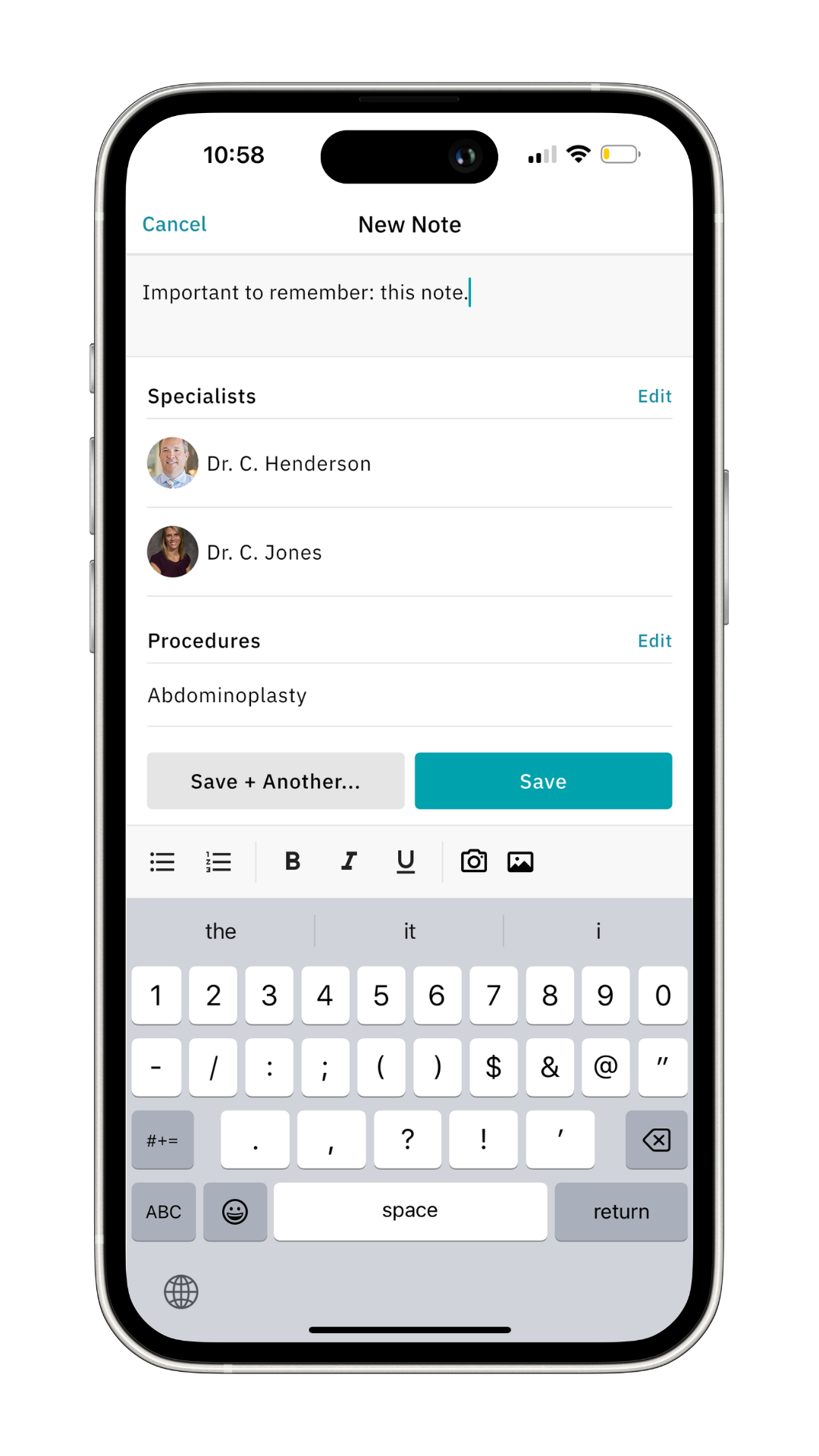
You can include a specialist and procedure in your note, then click Save to store it.
You can also add a note when you’re in a protocol by clicking on the '+ New Note' button at the bottom-right. 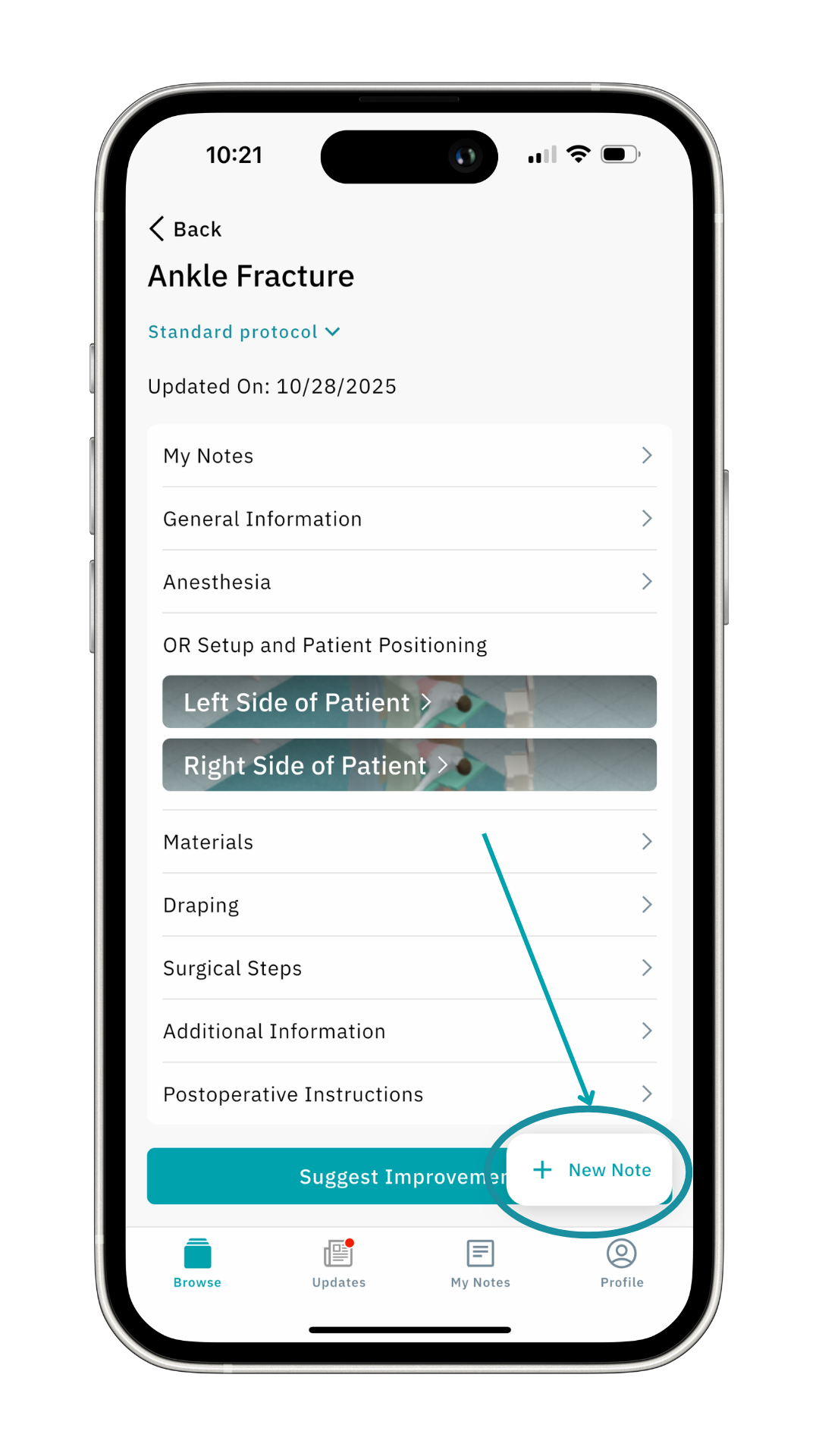
2. View Your Notes
To see all your notes in one place, head to My Notes, conveniently located in the bottom bar.

Check out our other articles for more tips and tricks on how to navigate the Incision Assist app.
Was this article helpful?
That’s Great!
Thank you for your feedback
Sorry! We couldn't be helpful
Thank you for your feedback
Feedback sent
We appreciate your effort and will try to fix the article