Welcome to the Incision Assist App. Getting started with Incision Assist takes just a few minutes. This guide helps you complete your registration, and log in on multiple devices.
1. Accept your invitation
Before anything else, make sure you’ve accepted the invitation sent by your team lead or by Incision’s Customer Success team.
Open your email and search for “Incision”
Open the invitation and follow the steps to set your password
Once your password is set, you’re ready to download the app.
2. Download the app
You can install Incision Assist on any mobile or tablet device. The app is also available on desktop as Assist Web.
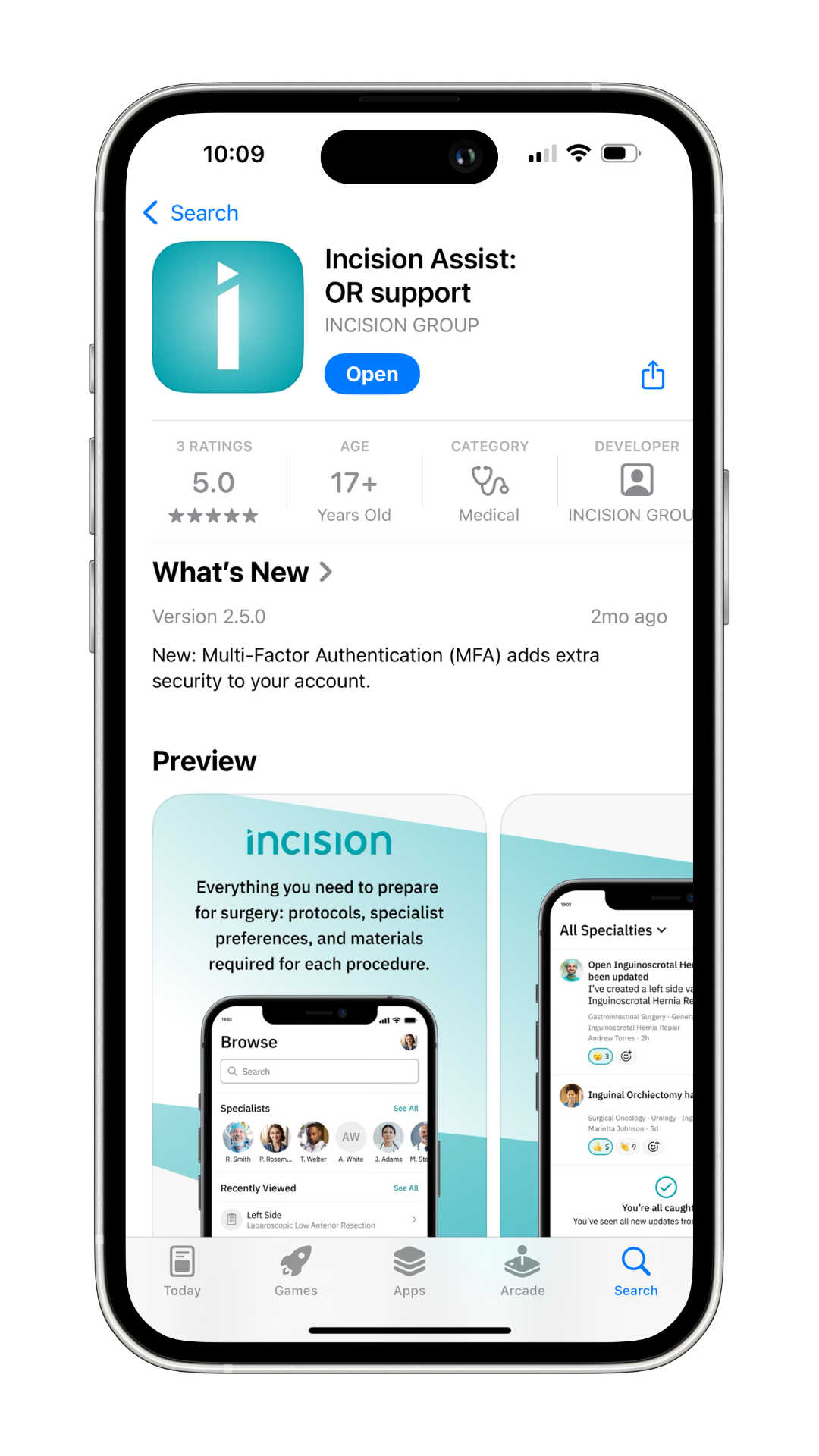
iPhone: Go to the App Store
Android: Open the Google Play Store
Search for “Incision Assist”, then download and install the app.
3. Log in
Mobile or Tablet
For the Assist app, open the app and log in using the email address and password you just created.
Computer or Laptop
For Assist Web, go to https://my.incision.care/login and log in using the email address and password you just created.
You now have access to the platform and can start navigating content designed to support your preparation and workflow.
4. Personalize your profile (optional but recommended)
To personalize your profile to receive your preferred notifications, tap the profile icon in the bottom right corner.
Here, you can:
Add a profile photo
Fill in your role and experience
Manage your notification preferences
These details help tailor the app to your day-to-day work and keep you up to date on new procedures or updates. Check out our other articles for insights into the Browse Page, how to create protocols, Devices section, Anatomy Models, Updates, and My Notes.
Was this article helpful?
That’s Great!
Thank you for your feedback
Sorry! We couldn't be helpful
Thank you for your feedback
Feedback sent
We appreciate your effort and will try to fix the article