During preparation, it can be helpful to have certain documents on hand. These can include general documents or documents linked to a specific specialty. That’s why the Documentation feature in Incision Assist was created. This guide explains how to use it.
Types of Documents in Incision Assist
There are two types of documents available:
General documents, organized by category
Specialty-linked documents
Below, we’ll explain where to find each type.
General Documents by Category
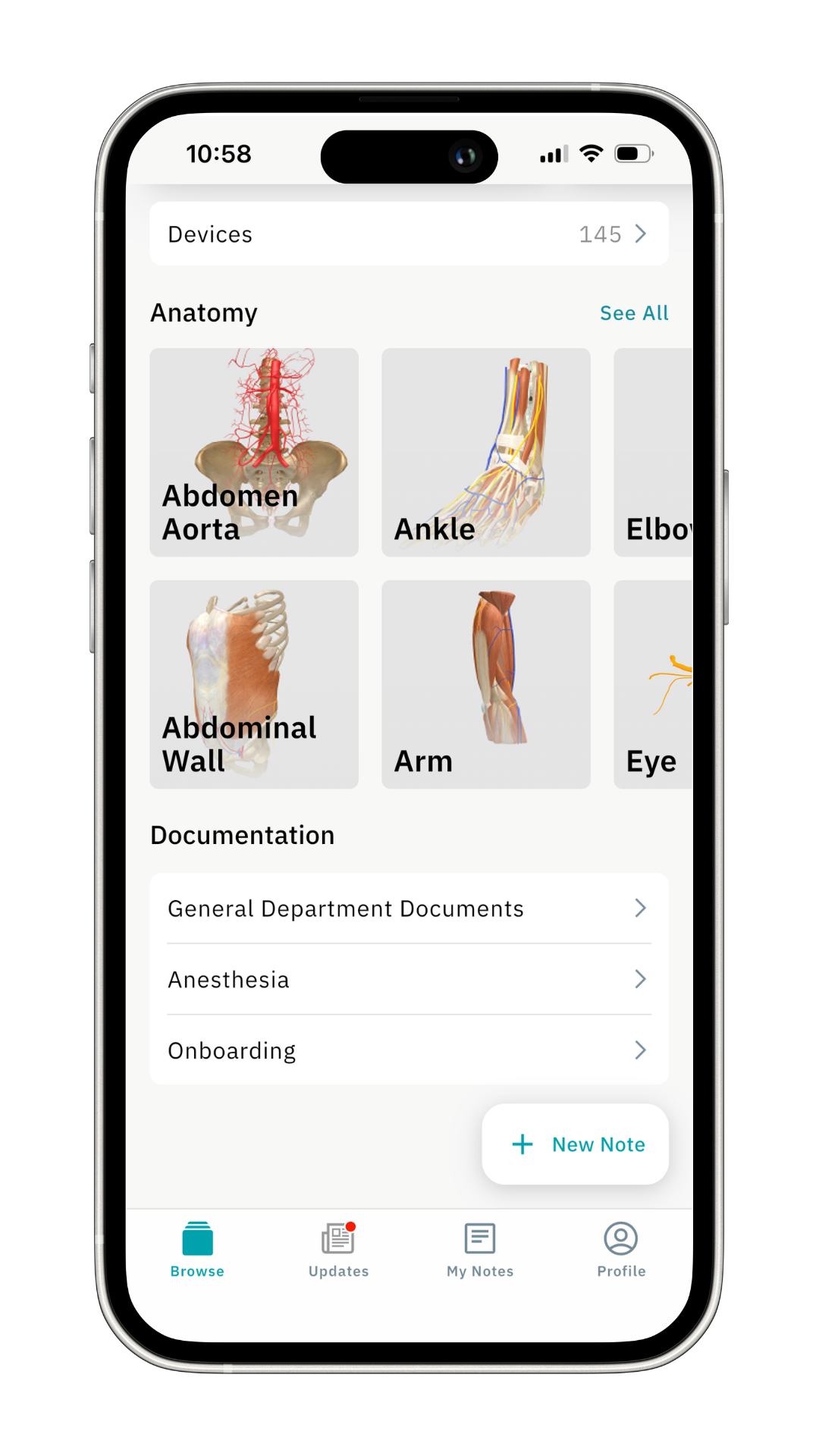
You can find general documents at the bottom of the Discover page.
These may include onboarding materials, department documents, holding area info, etc.
Scroll all the way down on the Discover page
Click on the category you’d like to view
Then click on the document you need
Tip: You can also use the search bar at the top of the Discover page to find documents quickly.
Documents Linked to a Specialty
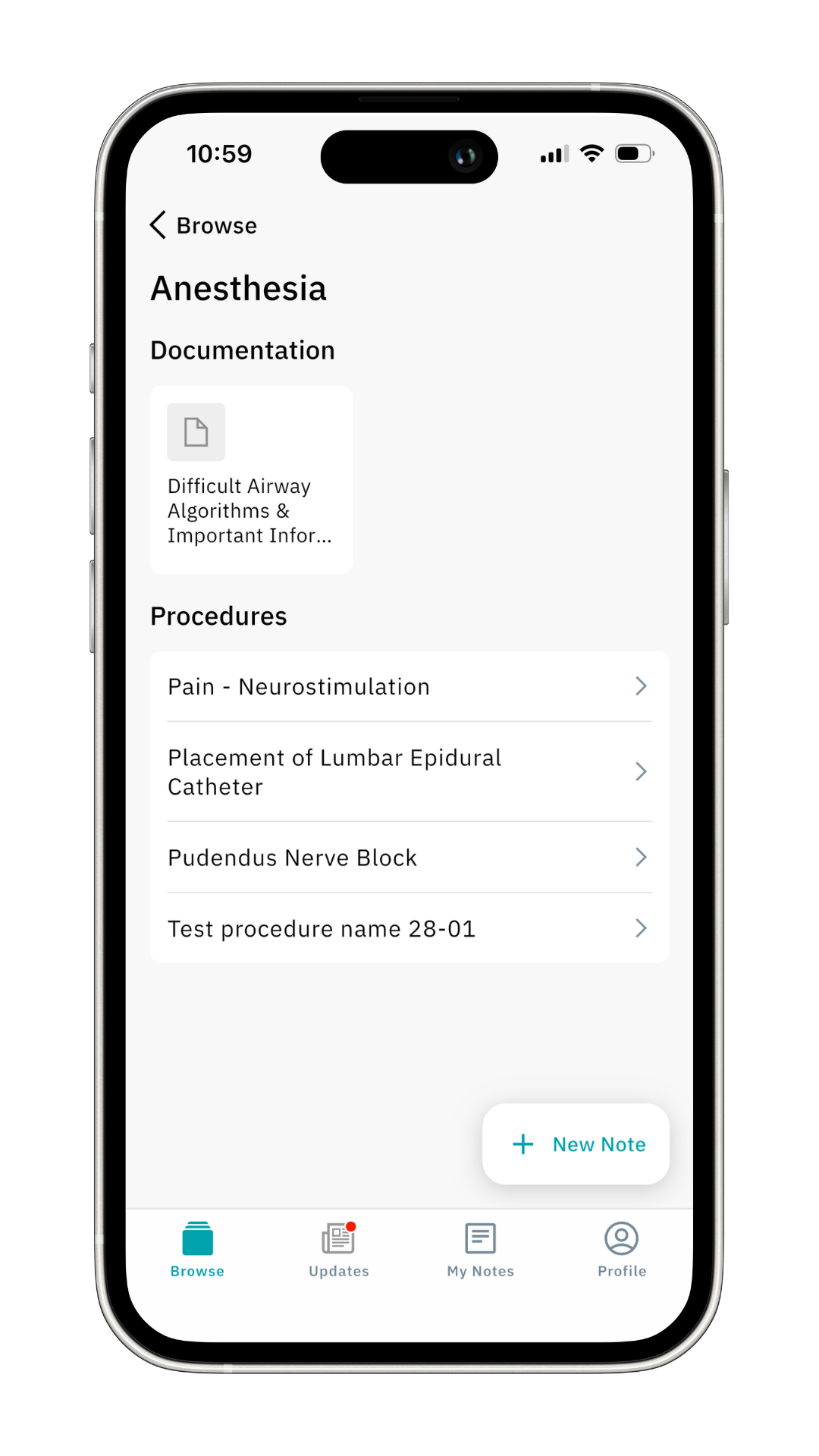
Specialty-linked documents are located on the specialty page, where you also find all related protocols.
Navigate to the Specialties section on the Discover page
Click on the specialty you want to view
At the top of the page, you’ll see all available documents
Click on the document you’d like to open
Tip: You can also use the search bar at the top of the Discover page to find these documents.
Want to learn more? Check out our other guides on how to use Incision Assist!
Was this article helpful?
That’s Great!
Thank you for your feedback
Sorry! We couldn't be helpful
Thank you for your feedback
Feedback sent
We appreciate your effort and will try to fix the article