In the 3D OR setup, you can add a selection of standard devices, which are commonly used. You can also add bonus devices: custom devices that you create and add yourself in the Incision Assist Manager. This guide walks you step-by-step through how to add a device to the Content Library and how to include it in a 3D OR Setup.
Add a New Device
- Navigate to the Devices tab: Click on 'Devices' in the left-hand menu.
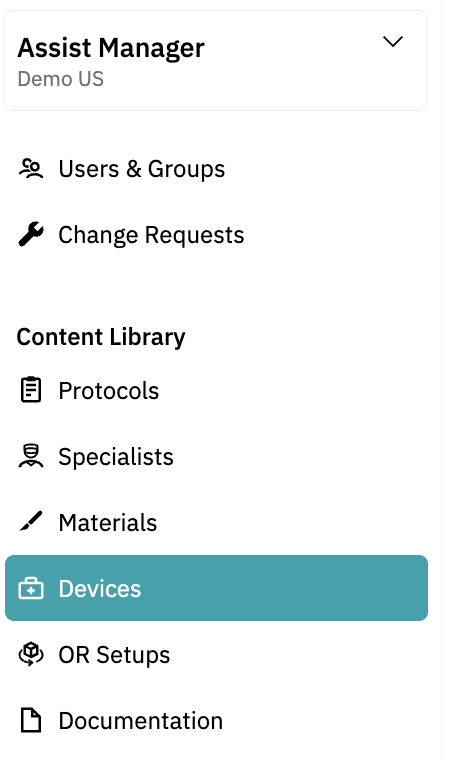
- Click on '+ New Device' at the top right.
- Fill in the information:
- Title (required): Provide a clear and specific name.
- Manufacturer (optional): Add the manufacturer's name.
- Hospital Product Code (optional): Enter your hospital's internal product code.
- EHR identifier (optional): Add the item's unique code from your hospital's EHR.
- Location (optional): Indicate where the device is stored or used.
- Device Type: Select the appropriate type from the dropdown menu. If the needed type isn't listed, select 'Custom Device' at the bottom of the menu. This is important so the device appears as an option in the 3D OR Setup.
- Description (optional): Add a brief explanation of the device.
- Keywords (optional): Add tags to improve searchability in the platform.
- Media Attachments: Upload any images, videos, or documents that provide context.
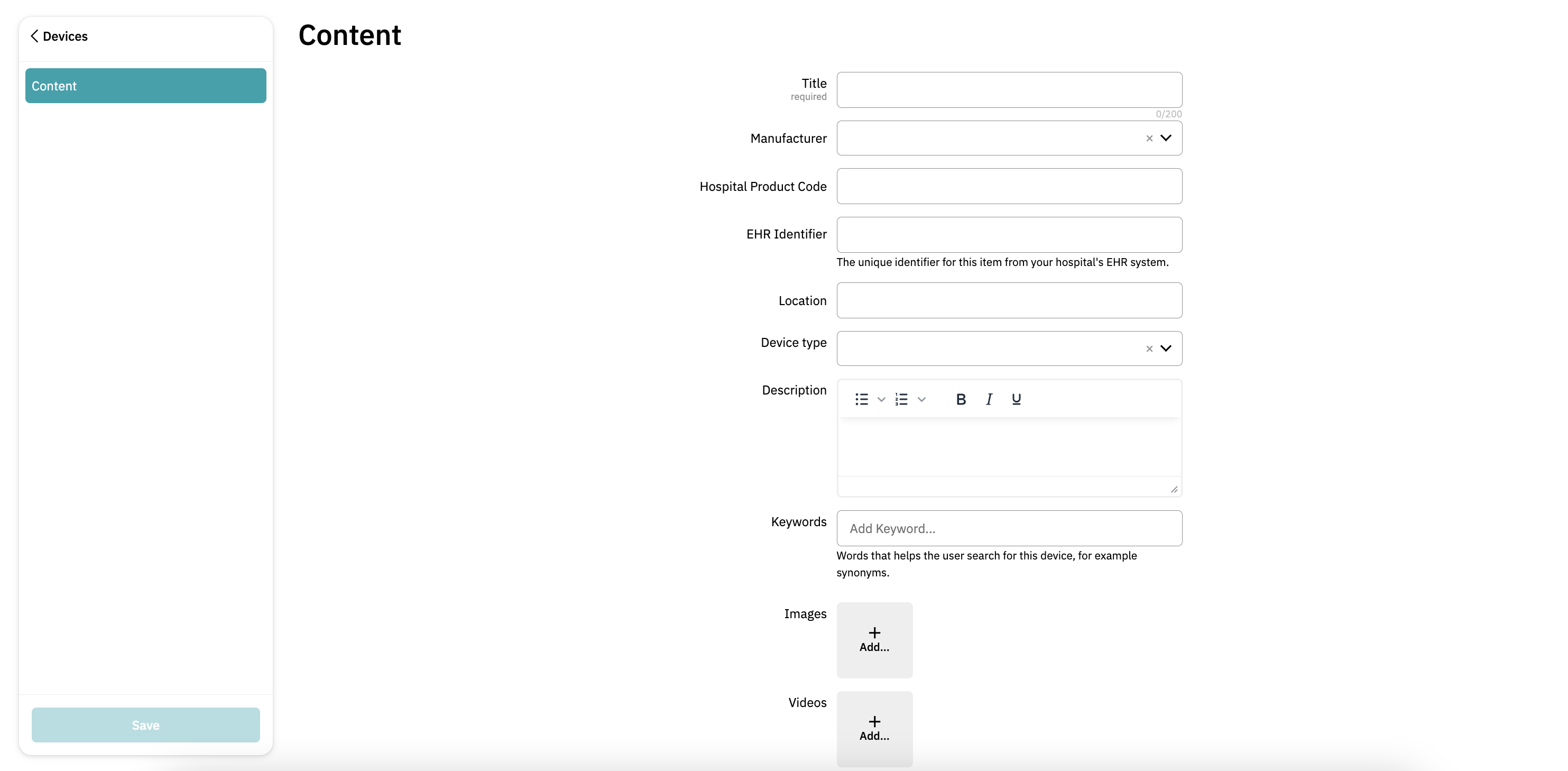
- Save the Device: Click on 'Save' at the bottom left.
Your device is now saved and ready to be used in the 3D OR Setup or materials list.
Add a Device to a 3D OR Setup
- Navigate to the Protocols tab: Click 'Protocols' in the left-hand menu.
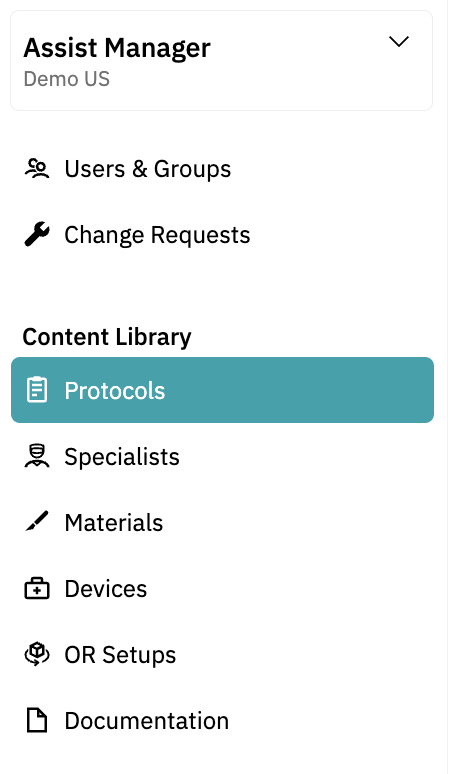
- Search for and open the protocol you want to edit
- Click on the 'OR Setup and Patient Positioning' tab. Make sure you are editing the correct version: the standard or specialist-specific.
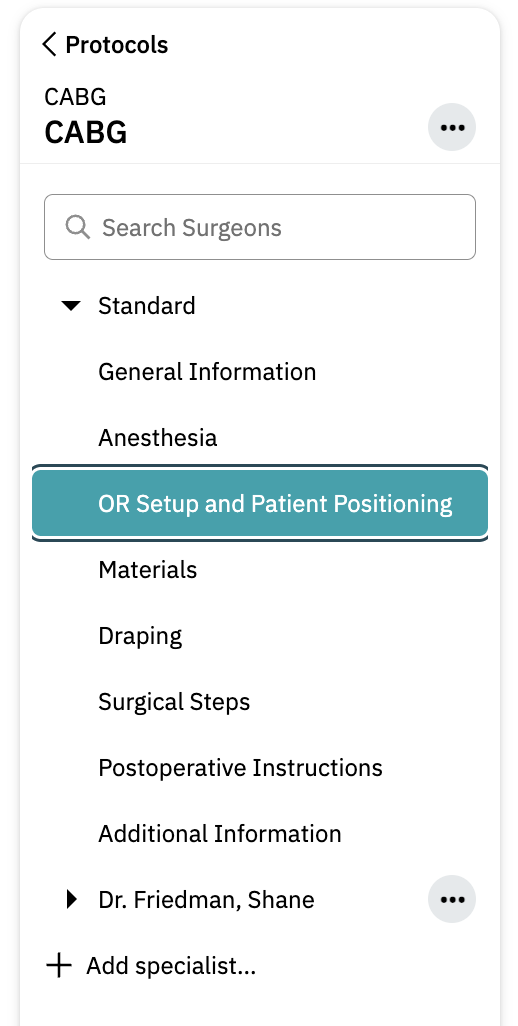
- Edit the OR Setup: Click on the specific 3D Setup that you like to add the device to.
- Add the Device:
- Click '+ Add item' in the bottom -right corner of the screen.
- You'll see the same categories from the Device Library. For example, if you added a Da Vinci device, select 'Da Vinci' as the category, then pick the device from the name dropdown.
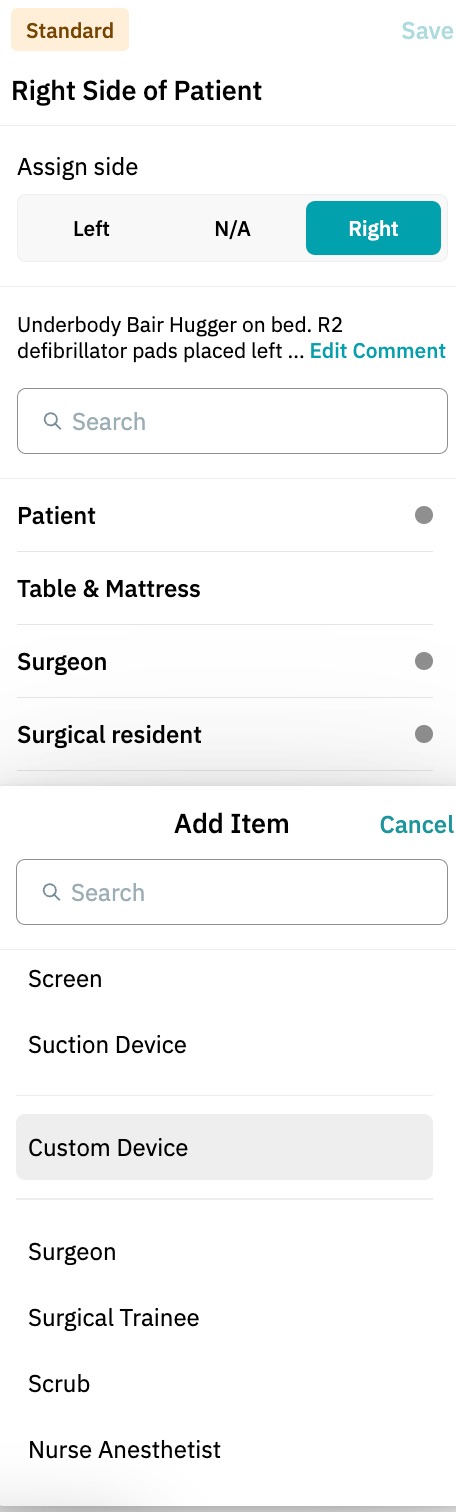
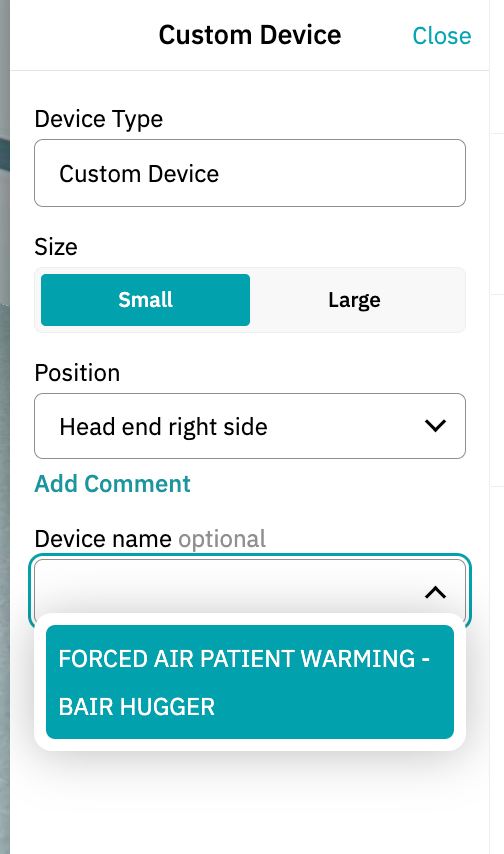
- To add a Custom Device: scroll down and select 'Custom Device'. Choose your custom device from the dropdown under 'Device Name'.
- Tip: Want to check the placement of your device? Click 'Save' to see it appear in the 3D Setup.
- Save your changes: Once your device is placed and configured, click 'Save' at the top-right.
Congratulations! You've successfully added a custom device to the 3D OR setup and patient positioning.
Add a Device to the Materials List in a Protocol
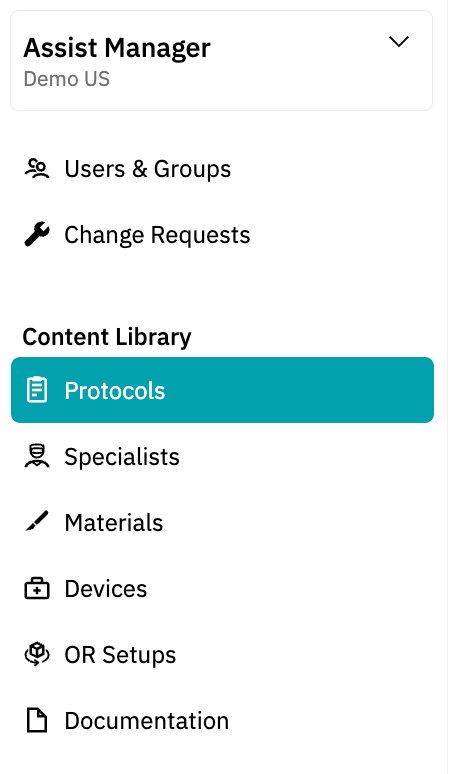
- Navigate to the Protocols tab: Click 'Protocols' in the left-hand menu.
- Search for and open the protocol you want to edit
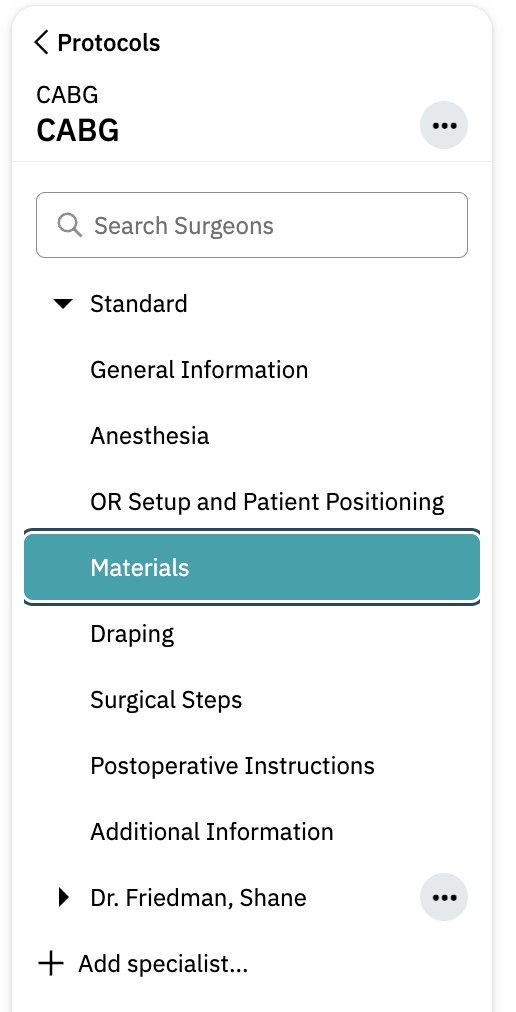
- Click on the 'Materials' tab. Check whether you're working in the standard protocol or a specialist-specific one.
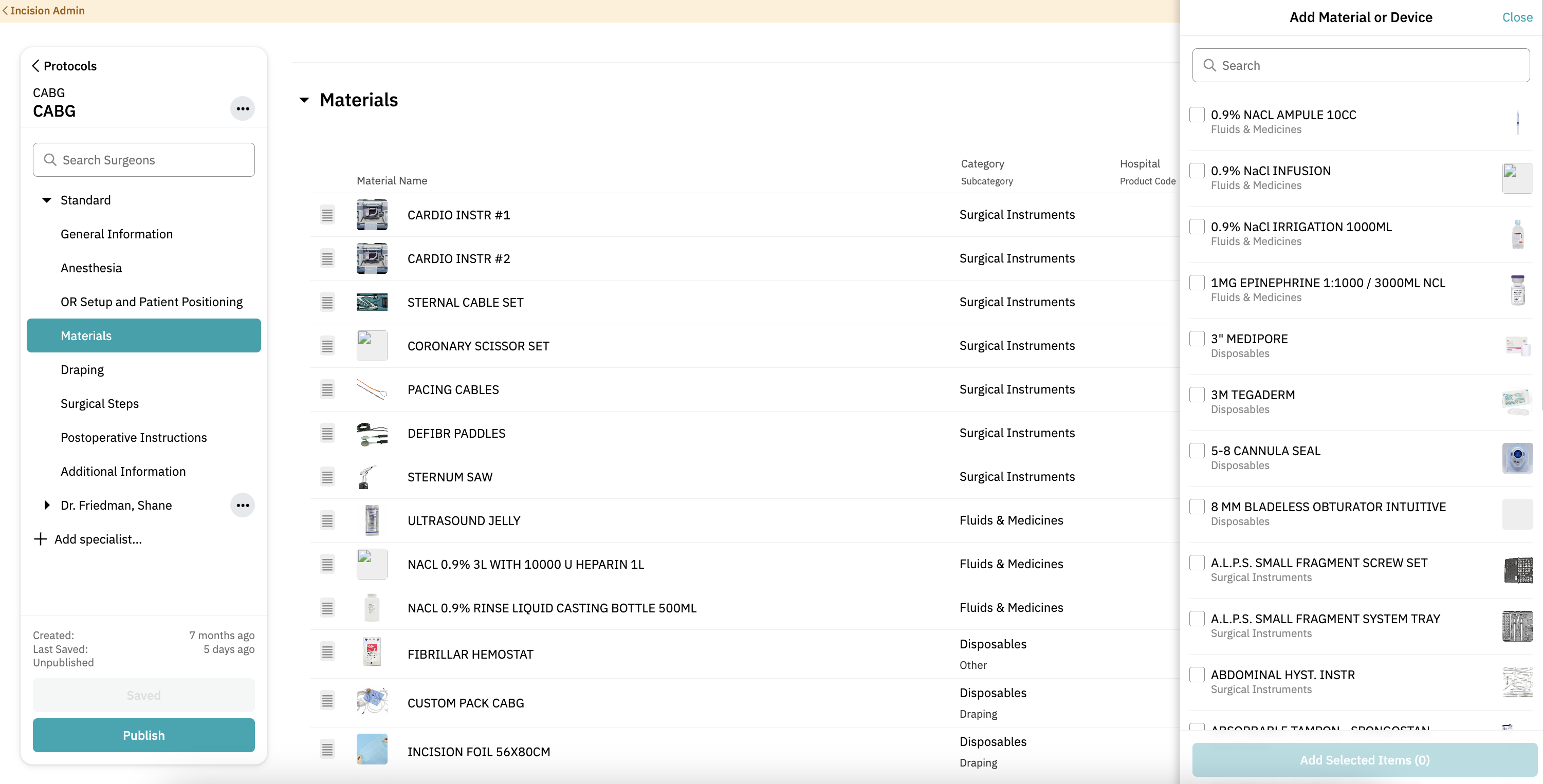
- Click '+ Add Material' (top-right).
- Select the (Custom) Device(s): Choose one or more devices from the list to include in the materials list. Click 'Add selected item' to add them to the materials list.
- Edit Device details:
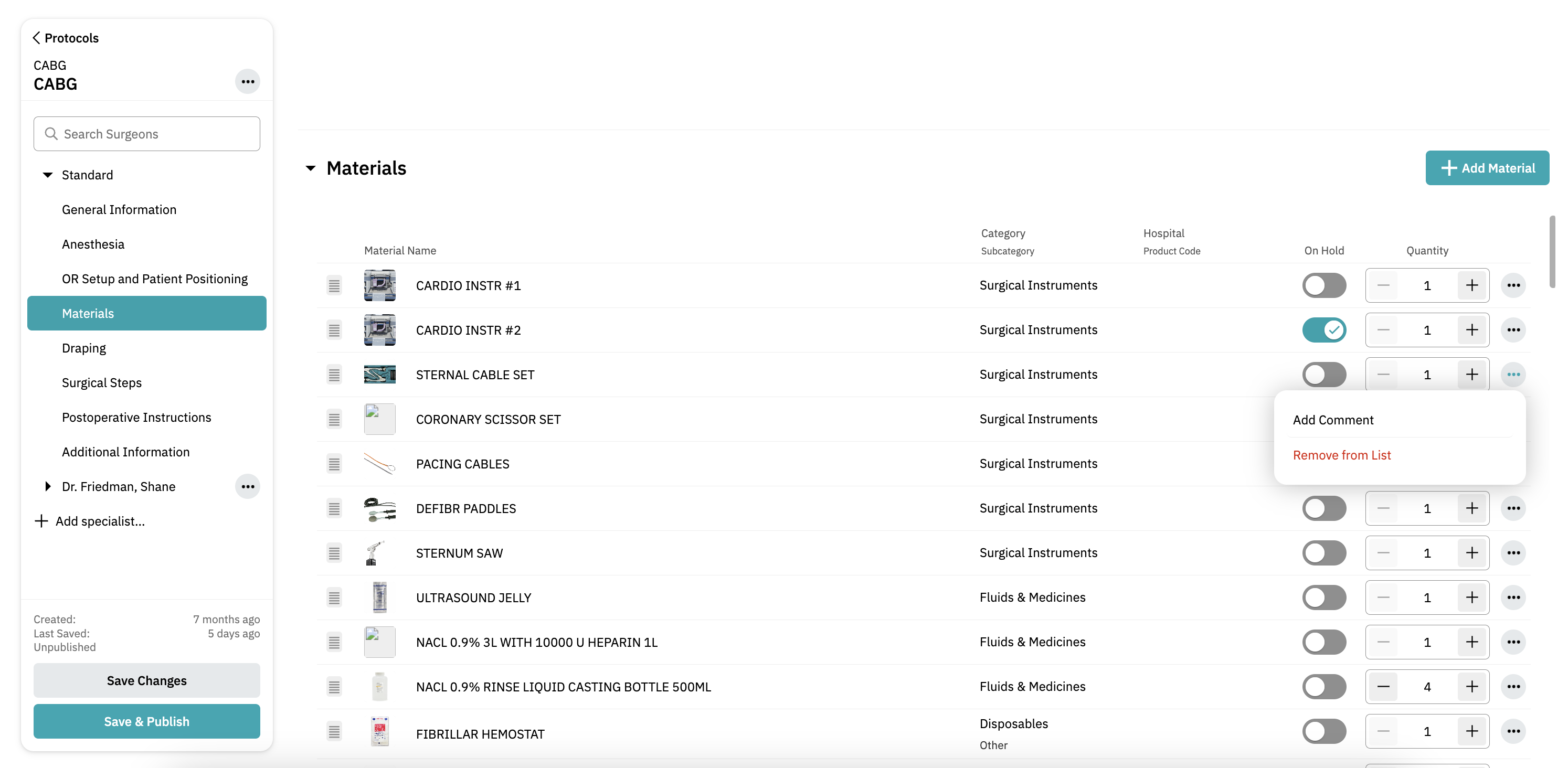
- Adjust the quantity as needed
- Make the item hold if needed (use the toggle)
- Click the three dots next to the item and select 'Add Note' to include comments or instructions.
- Save your changes by clicking 'Save Changes' and publish by clicking on 'Publish'.
 By following these steps, you can efficiently manage devices in the Incision Assist Manager, ensuring your colleagues always ahve the tools and information they need at hand.
Want to learn more? Check out our other guides on how to use the Incision Assist Manager!
Was this article helpful?
That’s Great!
Thank you for your feedback
Sorry! We couldn't be helpful
Thank you for your feedback
Feedback sent
We appreciate your effort and will try to fix the article