As a key-user, you'll receive suggested improvements (feedback) in the Incision Assist Manager. This guide provides a detailed overview of how to process these requests in Incision Assist. Follow these steps to manage feedback effectively.
First, a short explanation of how users submit feedback:
The user clicks the 'Suggest Improvement' button.
They fill out the form, including:
Description
About section: Type of feedback (protocol, technical, other)
Relevant procedure
The user then clicks 'Send feedback'.
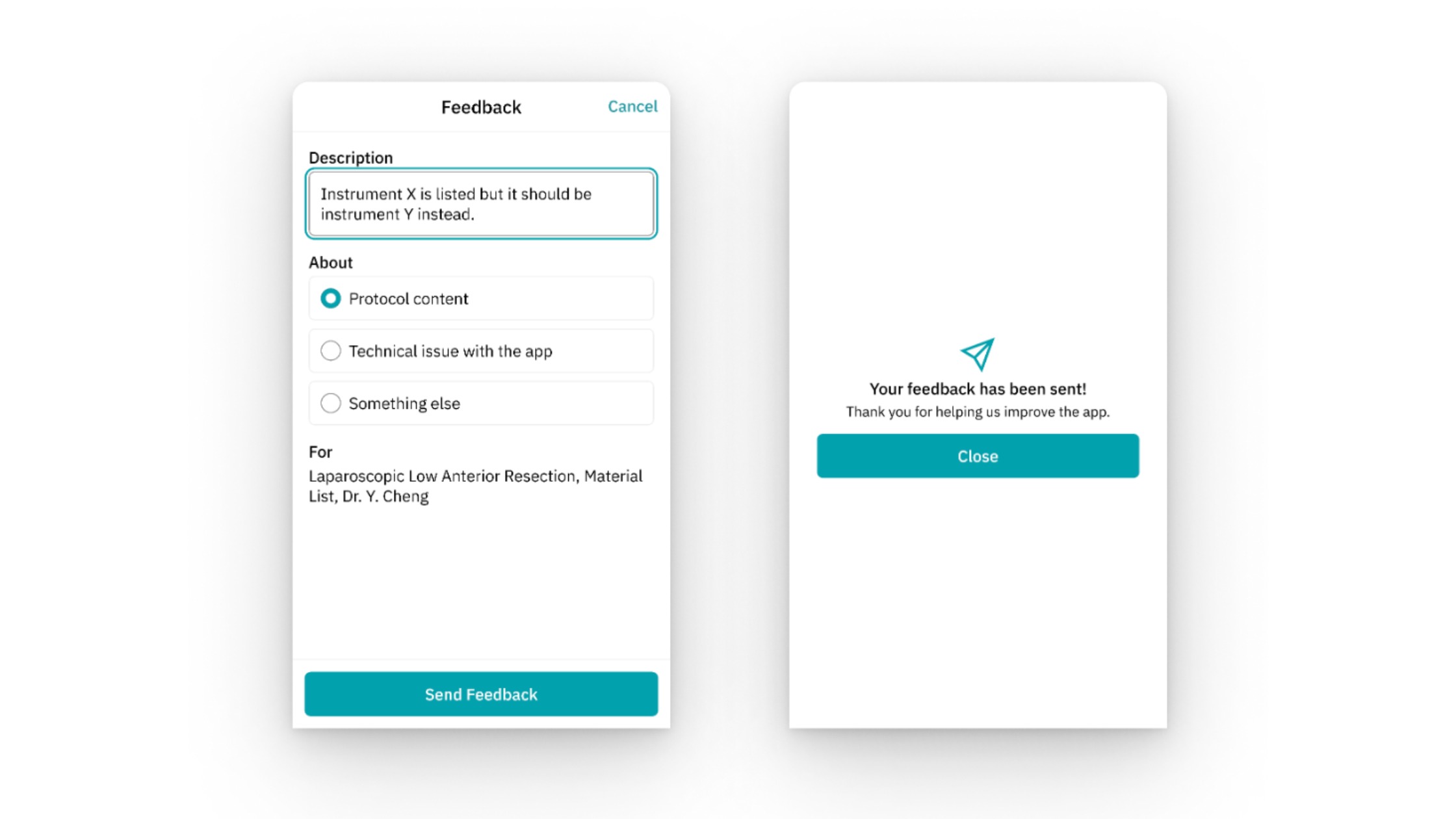 What will happen after the user hits ‘Send feedback’
The user receives a confirmation email acknowledging the submission.
As an editor, you will receive a confirmation email about the feedback. You can choose to receive emails from all specialties or specific ones. See the section below on 'Email Settings for Feedback Requests' for more details.
The confirmation email includes:Submitter's name
Procedure
Protocol
Specialist
Link to the protocol
Viewing and Managing Feedback Requests:
In addition to the email notifying you of new feedback, you can view all feedback requests in the Incision Assist Manager.
To view feedback requests in Assist Manager, go to Assist Manager and click on 'Change requests' in the left menu to see all feedback requests.
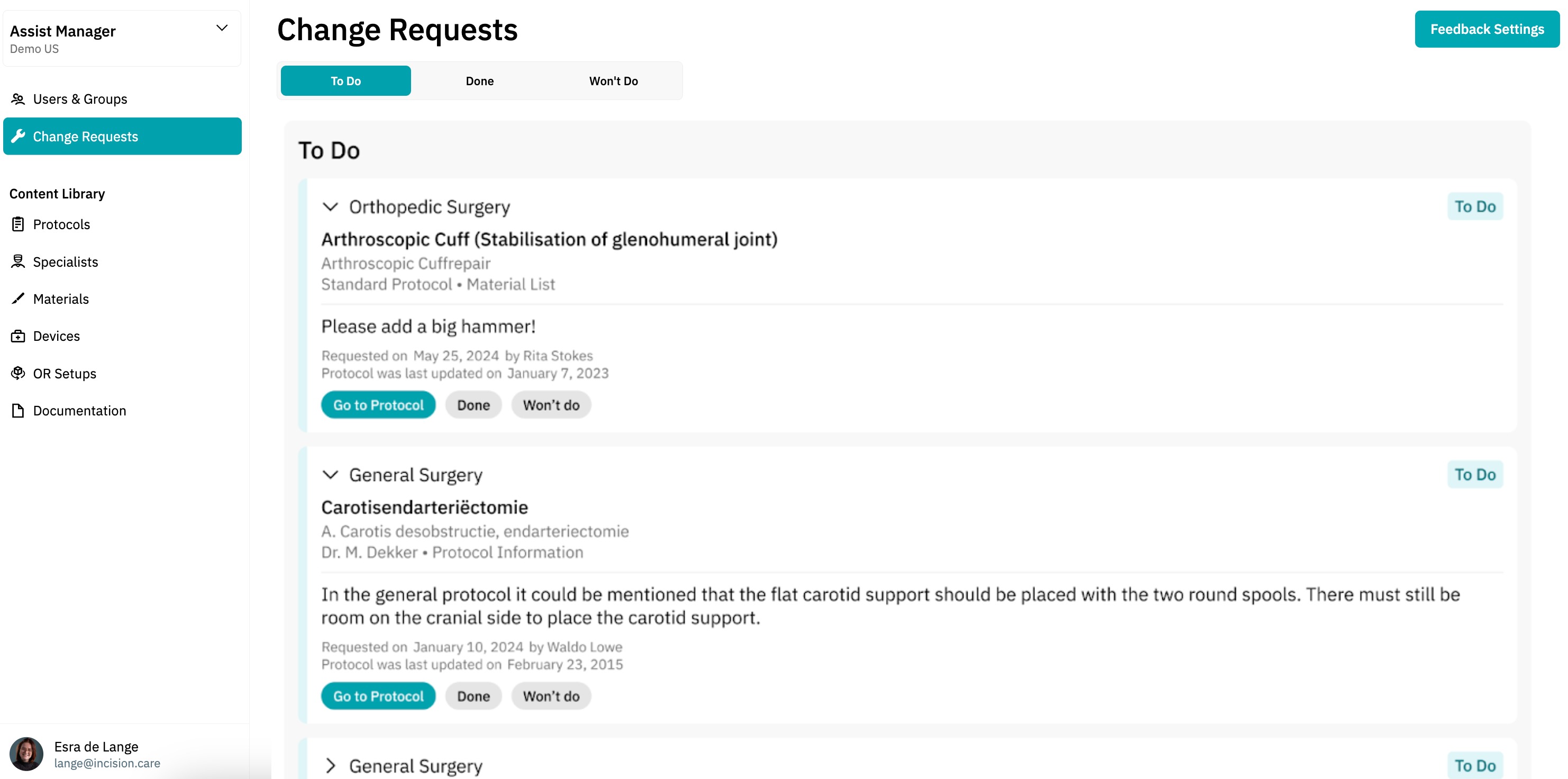
In the feedback overview, there are three tabs where you can categorize the feedback requests:
To Do: Feedback requests that need to be addressed.
Done: Feedback requests that have been completed.
Won’t Do: Feedback requests that have been rejected and will not be addressed.
Each request includes a 'Go to Protocol' button. Click this to directly address the request, make changes to the protocol, and publish the updates. Remember, you must always go into the protocol to make and publish changes; this cannot be done from the feedback overview.
Once you've handled the feedback request, you can click 'Done' or 'Won't do'. This will remove the request from your To-Do list.
- Click 'Done' if you have implemented the requested change/improvement.
- If you decide not to implement the request, e.g., after consulting with the specialist or determining the request was incorrect, click 'Reject'.
Note: The colleague who submitted the request will not receive an email notification about the status of the request.
Email Settings for Change Requests:
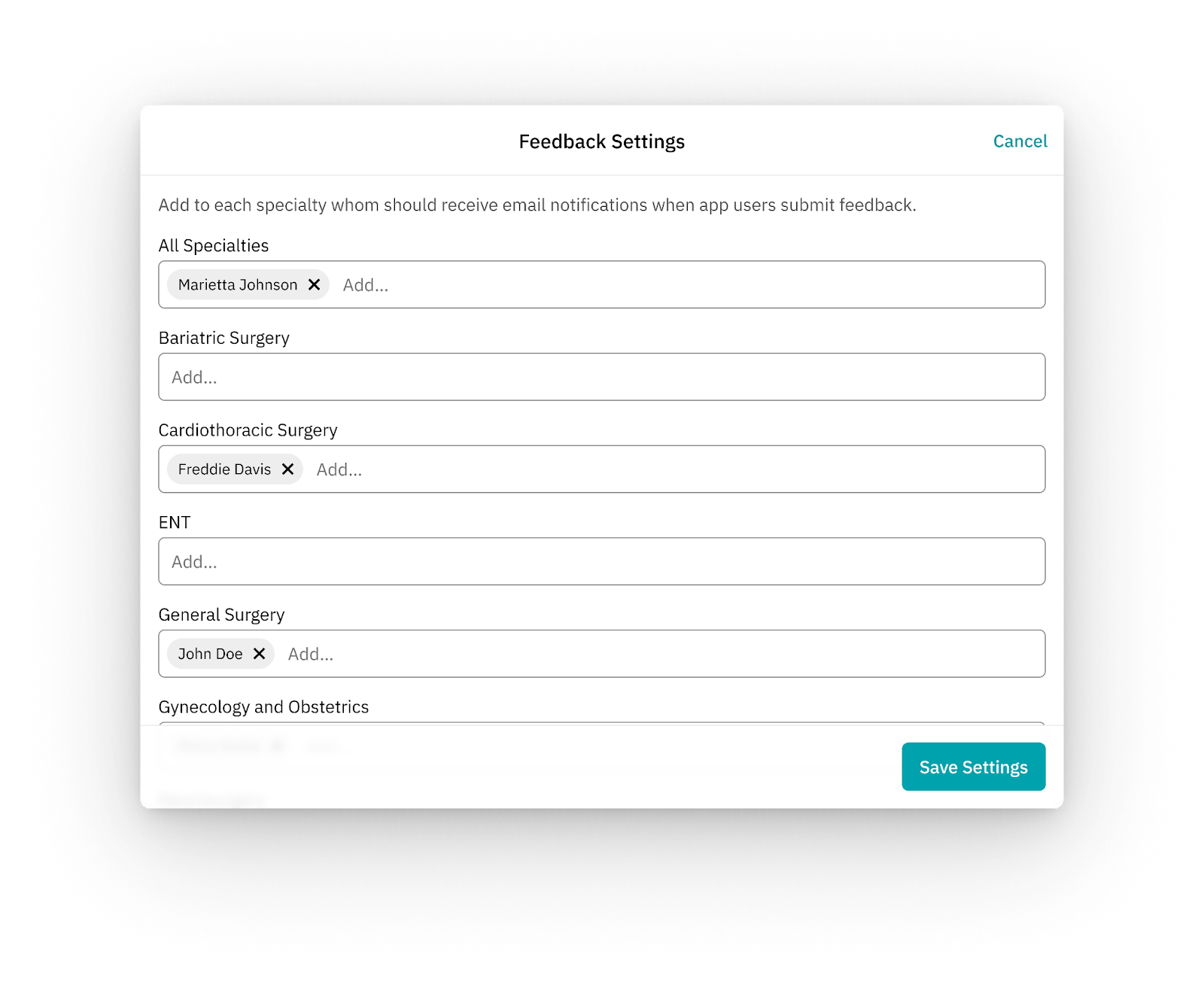
You can configure which specialties you and other admins receive emails from when there is a new change request. In the feedback tab of the Incision Assist Manager, click the 'Settings' button at the top right. Here, you can configure who will receive change request emails. Entering your email address under 'All Specialties' means you'll receive emails for change requests from all specialties. Alternatively, you can add your email address to specific specialties. For example, if you enter your email under 'General Surgery,' you'll only receive emails from change requests related to general surgery. Keep in mind that these settings only affect the emails you receive. In the Assist Manager, you'll still see all feedback.
By following all these steps, you can efficiently manage and respond to feedback in Incision Assist.
Want to learn more? Check out our other guides on how to use the Incision Assist Manager!
Was this article helpful?
That’s Great!
Thank you for your feedback
Sorry! We couldn't be helpful
Thank you for your feedback
Feedback sent
We appreciate your effort and will try to fix the article