This guide explains how to add and manage information in the Additional Information tab of the Incision Assist Manager.
Adding Additional Information
Navigate to the Desired Protocol: Open the protocol where you want to include additional information.
- Access the Additional Information Tab: In the left-hand menu, click on Additional Information.
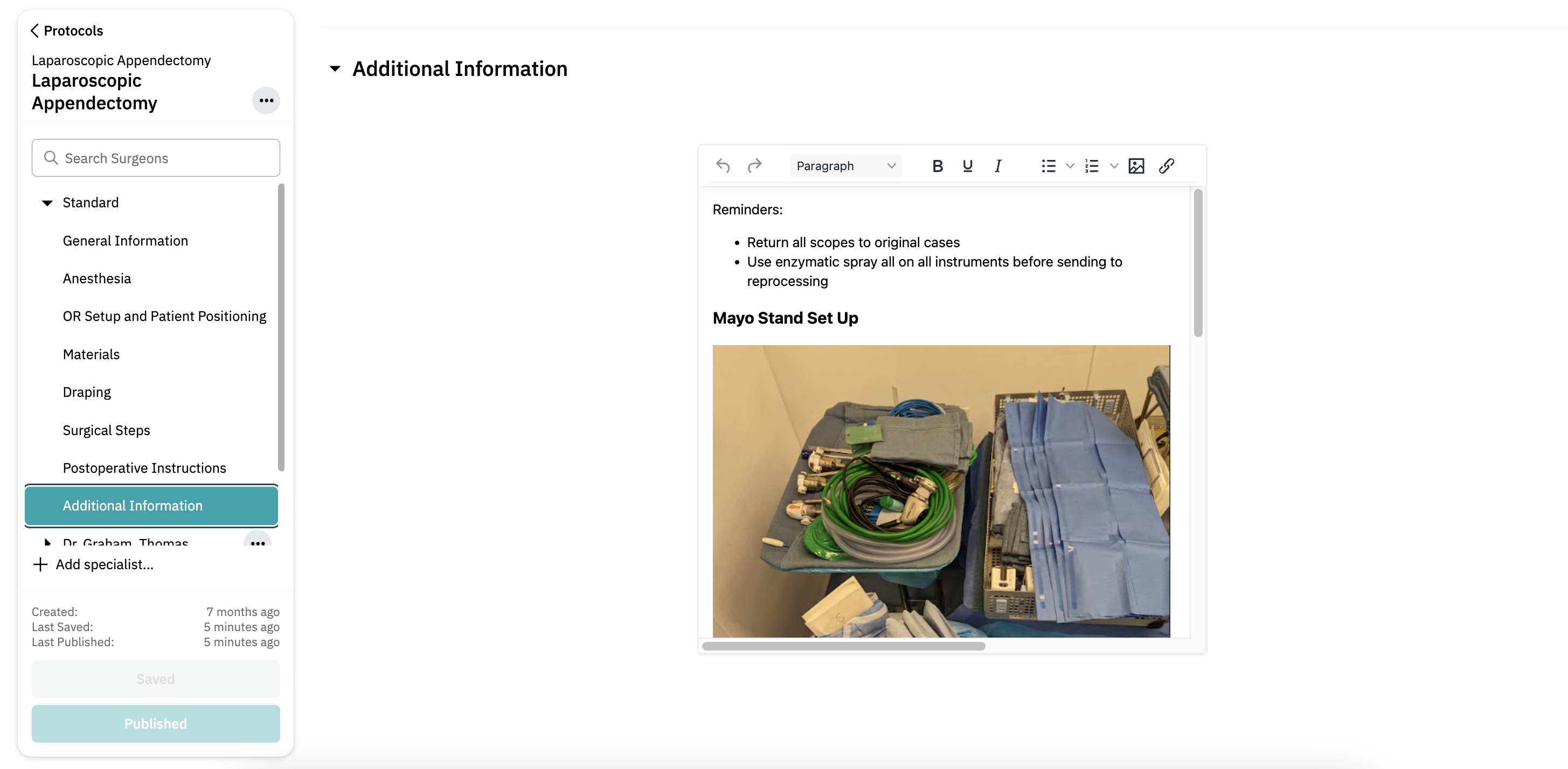
Adding Content
Text Box:
Use the text box to provide any additional details relevant to the procedure. This can include notes, guidelines, or other helpful information. You can also edit text to be bold, underlined, or italic.
Images and Documentation:
You can upload images or link to external documentation to supplement the text. This ensures that all relevant information is easily accessible.

Saving and Publishing
Save Your Changes: Click 'Save Changes'/'Save & Publish' at the bottom left to store your updates.
Publish Your Updates: When you’re satisfied with the content, click 'Publish' to make the edits visible in the Incision Assist app and Assist web.
By using the Additional Information tab, you can provide essential context and details to support your colleagues during procedures.
Want to learn more? Check out our other guides on how to use the Incision Assist Manager!
Was this article helpful?
That’s Great!
Thank you for your feedback
Sorry! We couldn't be helpful
Thank you for your feedback
Feedback sent
We appreciate your effort and will try to fix the article