This guide will walk you through the steps to add a material to the library in Incision Assist Manager and include it in a specific procedure or protocol. Important: a material must first be added to the library before it can be included in a protocol.
Adding a Material to the Library
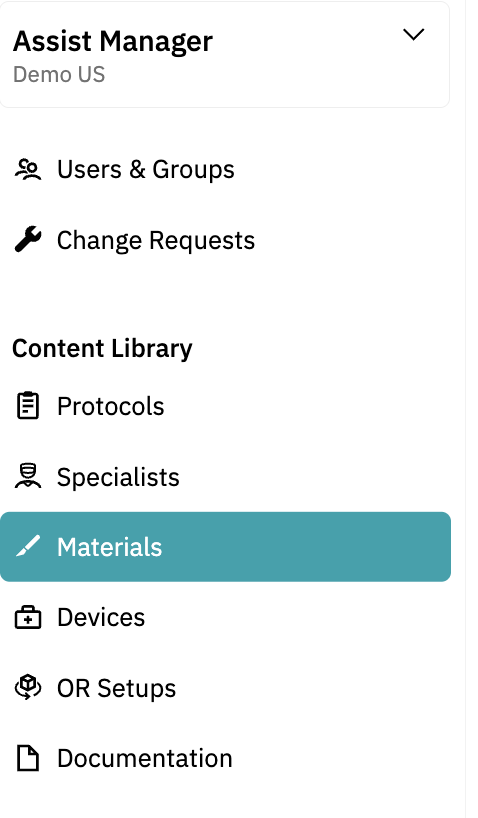
- Navigate to the Materials Tab: In the left-hand menu, select the Materials tab.
- Click "+ New Material": At the top right of your screen, click the "+ New Material" button.
- Enter the Material Details:
- Title: Choose a clear and specific name for your material to make it easy to search.
- Manufacturer: Enter the name of the manufacturer.
- Hospital Product Code: Add your internal product code, if applicable.
- Location: Specify where the item is stored.
- Category and Subcategory: Organize the material by selecting appropriate categories.
- Description and Keywords: Provide a brief description and include keywords to make the material easily searchable in the app.
- Media Attachments: You can also add images, videos, or documents to provide more context about the material.


Save Your Material:
- Once you've filled in all the necessary information, click the 'Save' button at the bottom left of the screen.
Your material is now saved in the library and ready to be used in protocols.
Deleting a Material from the Library
If you need to delete a material:
Go to the Materials tab.
Use the search bar if needed to locate the material.
Click the three dots on the right-hand side of the material.
Click 'Delete'. Confirm your choice if prompted.

Adding Materials to a Protocol/Preference Card
Once your materials are in the library, you can add them to protocols/preference cards.
Adding a Material to a Standard Protocol
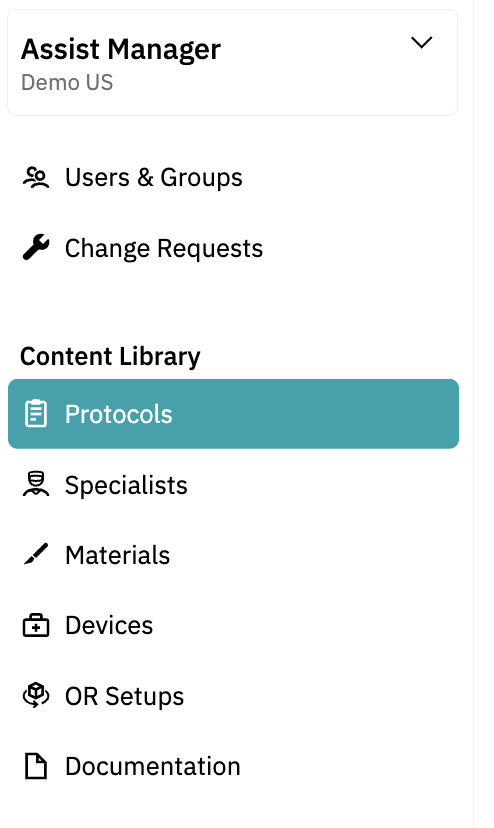
- Navigate to the Protocols Tab: Select the Protocols tab from the left-hand menu.
- Search for the Protocol: Click on the protocol you want to edit. It's easiest if you first add the material to the Standard protocol. When creating a specialist protocol, all the materials from the Standard protocol will be copied automatically.
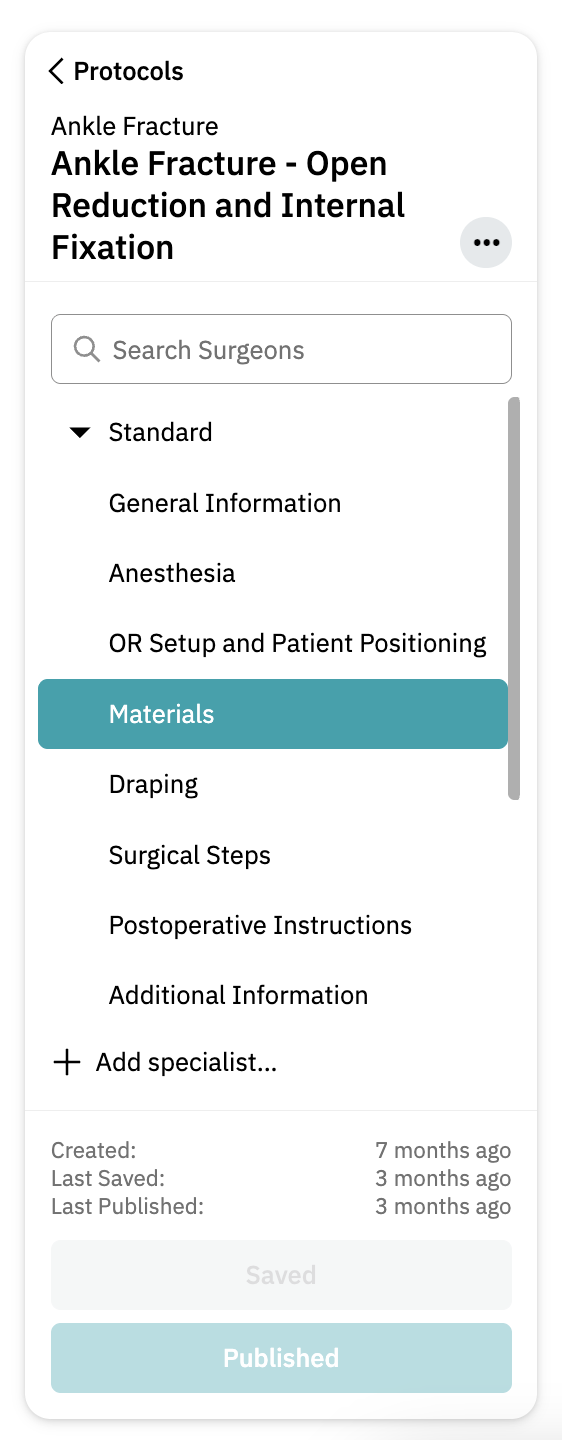
- Go to the Materials Tab: Within the selected protocol, click on the Materials tab on the left-hand side.
- Click "+ Add Material": In the top right corner, click the "+ Add Material" button.
- Select the Material(s): Choose one or multiple materials from the list to add to the protocol.

- Edit Material Details:
- Adjust the quantity required for each item.
- Make the item 'On Hold' (for example, if it doesn't need to be opened just yet) by clicking on the toggle.
- Add comments to materials if needed by clicking the three dots on the right-hand side and selecting Add Comment.

- Save Your Changes: Once you've made your updates, click the 'Save' button.
- Publish Your Updates: When you’re satisfied with the content, click 'Publish' to make the edits visible in the Incision Assist app and Assist web.
If you want to learn more about adding specialists and how to add their preferences, please read our detailed guide: How to Add Specialists and Add Their Preferences to Protocols in the Incision Assist Manager.
Want to learn more? Check out our other guides on how to use the Incision Assist Manager!
Was this article helpful?
That’s Great!
Thank you for your feedback
Sorry! We couldn't be helpful
Thank you for your feedback
Feedback sent
We appreciate your effort and will try to fix the article