This guide explains how to add, edit, and remove documents in the Incision Assist Manager.
Adding a Document to the Library
Steps:
- Navigate to the Documentation tab:
In the menu on the left-hand side, select the Documentation tab.

- Click on ‘+ New Documentation’ in the top right corner of your screen.
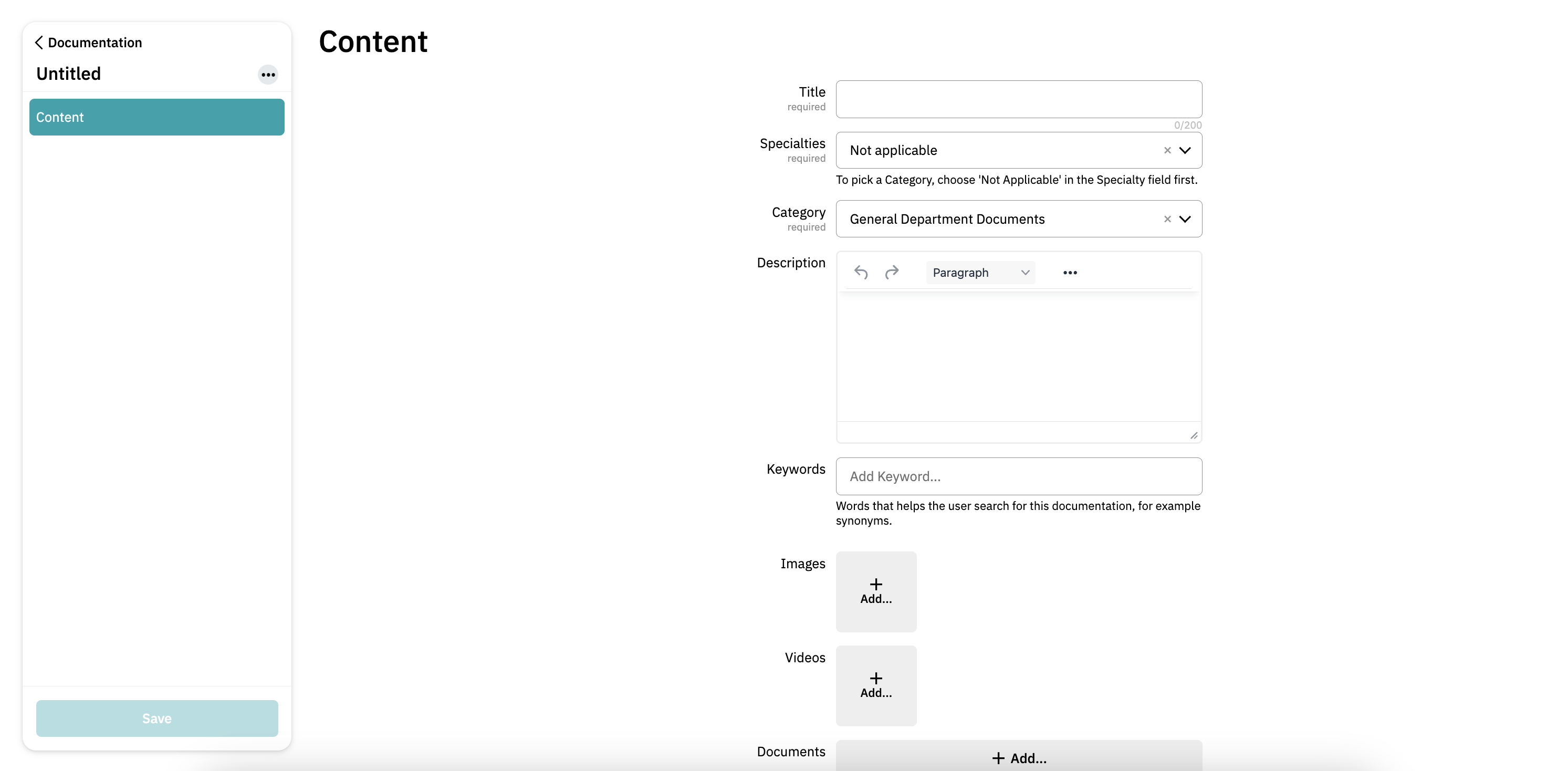
Fill in the document details:
Title: Choose a clear and specific title to make your document easy to find.
Specialties: Select the relevant specialty for this document.
If the document is not specific to a specialty or is more general, choose ‘Not Applicable’. After you've selected 'Not Applicable' you'll see an extra field where you can choose a category, such as:Department Documents
Anesthesia
Holding
Onboarding
APS/Pain
Recovery
Sedation
Pre-operative Screening
Surgery
Other
Description and Keywords: Add a description and keywords to help users search for the material in the app.
Media Attachments: You can also upload images, videos, or documents to provide additional context.
Save the document:
Click the ‘Save’ button in the bottom-left corner once all required fields are completed.
Your document is now saved to the library and visible in the Incision Assist App and Web.
Removing a Document from the Library
To delete a document:
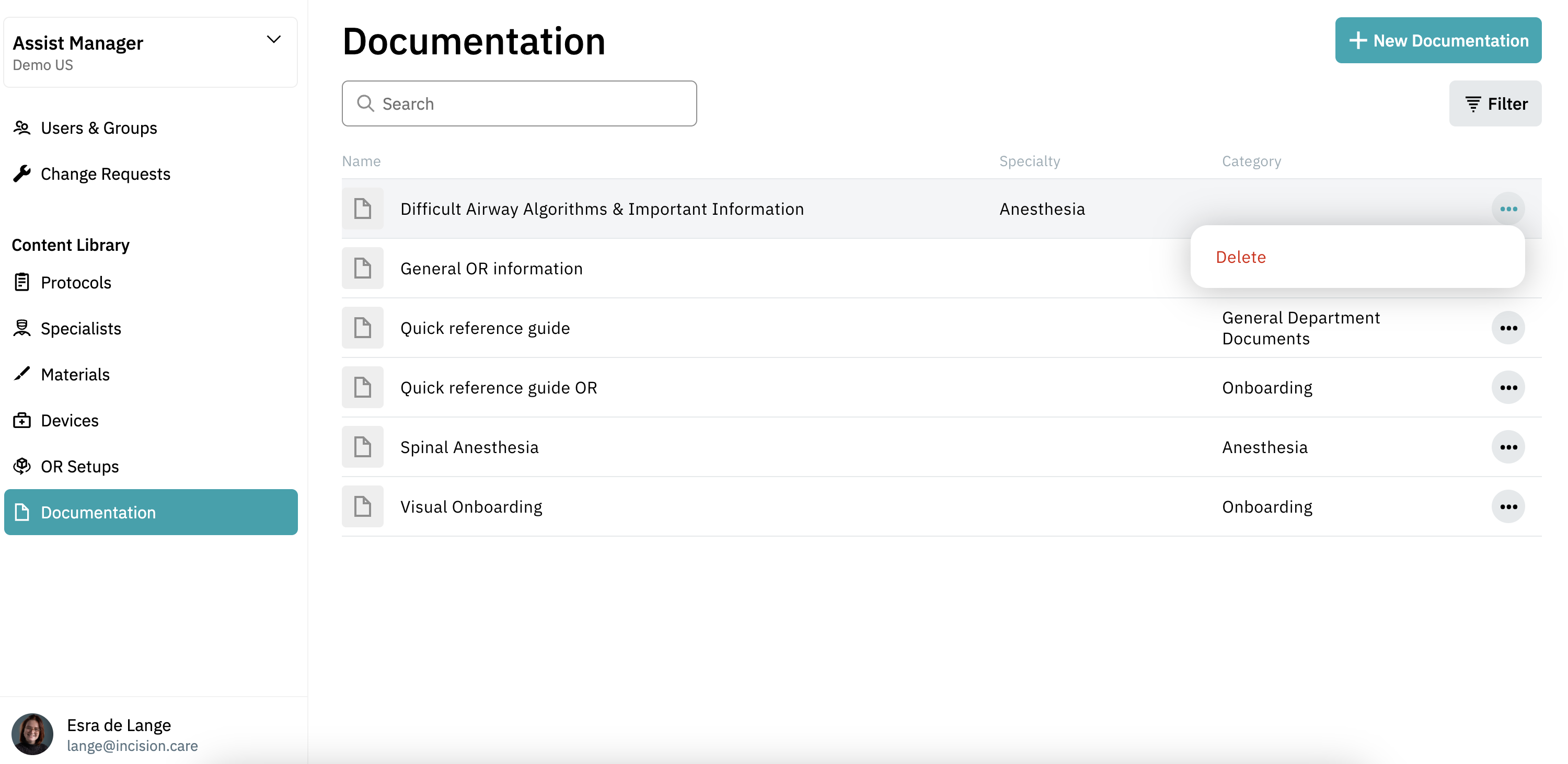
Go to the Documentation tab.
Use the search bar if needed to find the document.
Click the three dots to the right of the document.
Select ‘Delete’ and confirm your choice if prompted.
⚠️ Note: Deleting a document removes it for all users.
Want to learn more? Check out our other guides on how to use the Incision Assist Manager!
Was this article helpful?
That’s Great!
Thank you for your feedback
Sorry! We couldn't be helpful
Thank you for your feedback
Feedback sent
We appreciate your effort and will try to fix the article